
Guide and Acces 2026
How to Download and Install the Binomo App on Any Device
Get Binomo for your phone or PC in a few clicks – download the app or explore the browser-based option below.
Binomo offers native apps for Android and iOS, plus an APK file for phones that can’t use Google Play. On a computer, you trade through the web version in your browser, no separate program needs installing first.
If you’re trying to figure out which option fits your device, here’s the short version: phone users install the app from their store (or the APK as a backup), while PC and Mac users open the platform directly online and start trading right away.
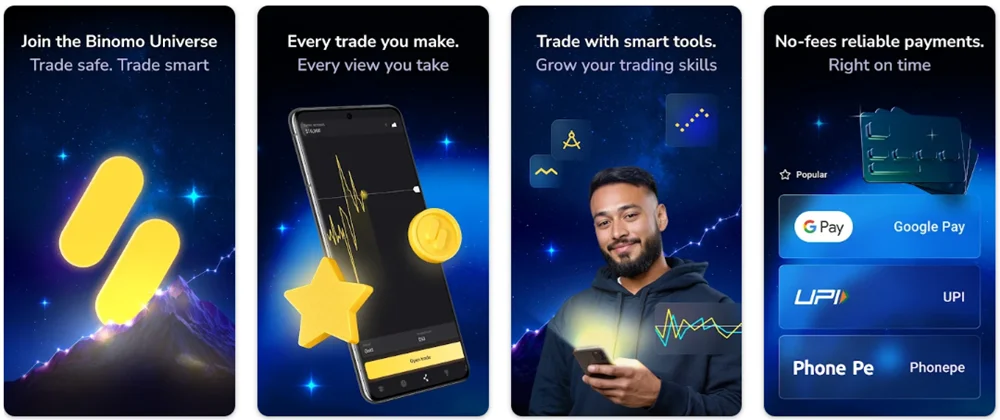
Where You Can Get Binomo
| Device | App available? | How to access |
|---|---|---|
| Android | Yes | Google Play, or APK from the official site |
| Android (Play Store blocked) | Yes (workaround) | Direct APK install |
| iPhone / iPad | Yes | App Store |
| Windows PC | Runs as web app | Open directly in browser |
| Mac | Runs as web app | Open directly in browser |
| Any device | Always available | Web version / browser access |
Android App and APK: What’s the Difference
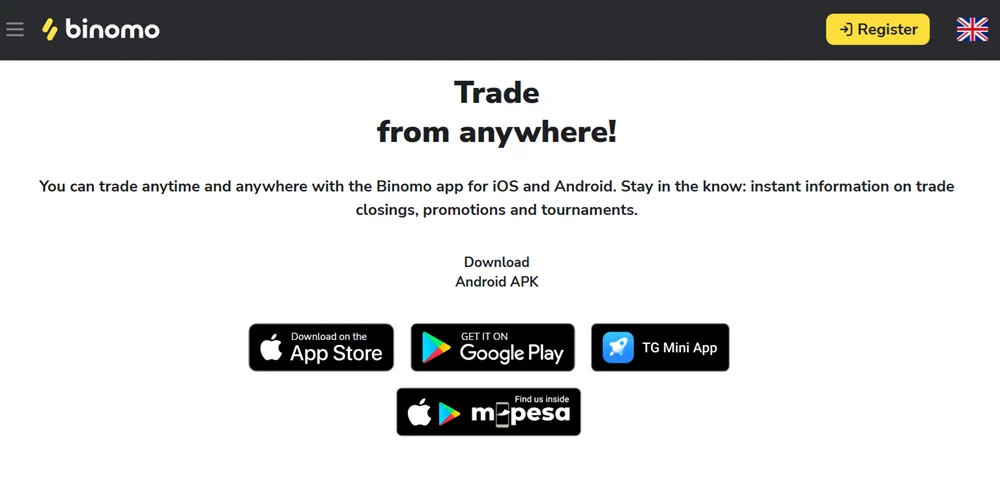
The Android app is the most complete mobile version of the platform, and it can be installed two ways.
Google Play. Search “Binomo” in the Play Store, install it, and open it once the download finishes. This is the simplest route and keeps the app updated automatically.
APK file. If Play Store access is restricted in your region, the APK is downloaded directly from the official Binomo website and installed manually. The trade-off is that an APK doesn’t update itself, so you need to check the site periodically for a newer version and reinstall it yourself.
To install the APK:
- Go to the official Binomo website and open the download or menu section for the APK.
- Enable “Install from Unknown Sources” in your phone’s security settings.
- Download the file and open it from your notifications or file manager.
- Accept the install permissions and wait for setup to finish.
- Turn “Unknown Sources” back off once the app is installed.
Stick to the APK from Binomo’s own website. Files shared on third-party APK stores or forum links aren’t something we can vouch for, so it’s worth sticking to the official source.
Download for iPhone and iPad
The iOS app is live on the App Store right now under the name “Binomo: Smart investments,” published by Titawin Limited. It supports iPhone, iPad, and Apple Vision devices, and requires iOS 14.0 or later to install.
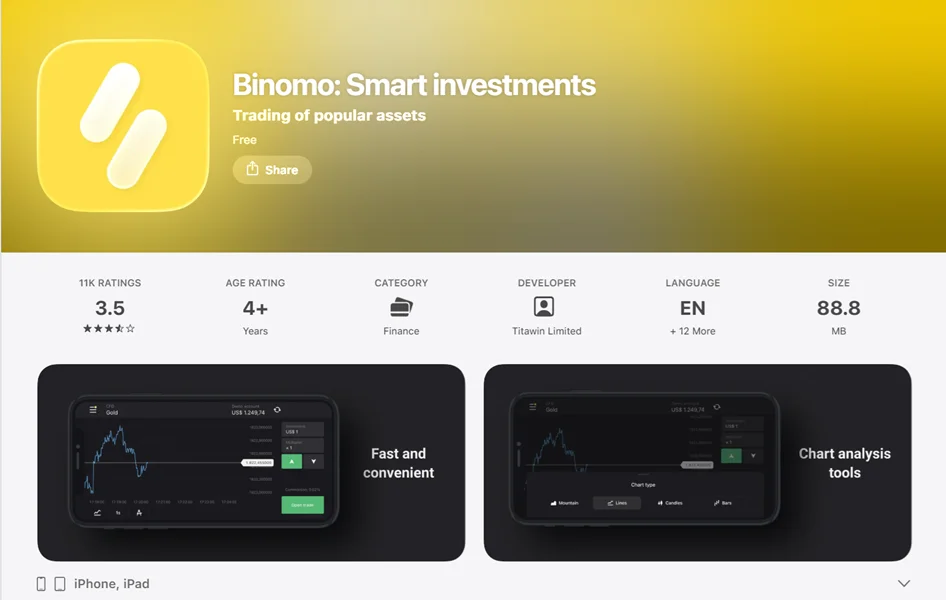
To get it:
- Open the App Store on your iPhone or iPad.
- Search for “Binomo: Smart investments” (or search by developer, Titawin Limited, if the name doesn’t come up first).
- Tap “Get” and confirm the download.
- Launch the app once installation finishes and register or log in.
You can create an account directly inside the app using email, Google, or Facebook, so there’s no need to sign up on the website first.
Availability can vary by country due to local rules around this type of trading, so if the listing doesn’t show up in your region’s App Store, that’s usually why. In that case, the web version in Safari works as a full substitute rather than a limited fallback, and you can add it to your home screen so it opens like a regular app:
- Open Safari and go to the Binomo site.
- Tap the Share icon at the bottom of the screen.
- Select “Add to Home Screen.”
- Name the shortcut and tap “Add.”
Trading Binomo on PC and Mac
On Windows and Mac, Binomo runs directly in your browser as a full web app. You open the site and start trading without installing anything first.
To get started on a PC or Mac:
- Open any browser: Chrome, Firefox, Edge, or Safari.
- Go to the official Binomo website.
- Log in or register.
- Trade directly from the browser window.
Most browsers let you pin this as a shortcut so it feels closer to a native app. In Chrome, use the menu, then More tools, then Create shortcut. In Edge, open the menu, then Apps, then Install this site as an app. This opens Binomo in its own window without the address bar or tabs, so it launches and feels like a regular desktop program.
If you specifically want the mobile-style interface on a bigger screen, an Android emulator (BlueStacks, NoxPlayer, and similar tools) lets you run the Android app on a PC. This is an optional workaround, not an official Binomo product, and setup takes longer than just using the browser.
Getting Set Up After Installing
Once you’ve picked your version, app or browser, the first steps are the same:
- Open the app or the website.
- Choose Sign Up, then register with email, Google, or Facebook.
- Select your account currency. This can’t be changed later, so pick the one matching your funding method.
- Confirm your email through the verification link.
- Log in and check that both your demo and real balances appear on the main screen.
From there, a demo account with virtual funds loads automatically, so you can look around before trading with real money.
App Not Installing or Not Opening: Common Fixes
Most installation and launch issues come down to a small list of causes:
| Problem | Likely cause | What to try |
|---|---|---|
| App won’t install | Outdated OS or low storage | Update Android/iOS, free up space, retry |
| APK won’t install | Unknown Sources disabled, or corrupted file | Re-enable the setting, redownload from the official site |
| App crashes on open | Corrupted cache | Clear cache in device settings, then relaunch |
| Stuck on login or splash screen | Cached login data | Log out, clear app data, restart the device |
| Charts or pages won’t load | Weak connection | Switch between Wi-Fi and mobile data |
| Play Store search shows nothing | Regional restriction | Use the APK or the web version instead |
If none of these fix it, a clean reinstall (fresh download from Play Store, App Store, or a new APK copy) resolves most remaining issues. And whenever an app is being stubborn, the web version is a quick way to keep trading while you sort out the device-side fix.
Before You Install: A Quick Safety Check
A few habits reduce risk when downloading any trading app:
- Get the Android or iOS app from Google Play or the App Store, or the APK from Binomo’s own domain.
- Check that the listed developer matches what’s expected before installing.
- Review the permissions requested during setup.
- Stick to the official source rather than third-party APK repositories.
- Keep both the app and your device’s operating system updated.
FAQ
Yes, for Android and iOS. On Windows and Mac, you use the web version in a browser instead of a separate program.
Yes. The web version works on any device with a browser and includes the core trading features, making it a practical option if you’d rather skip the install step.
Directly from the official Binomo website. It’s a handy alternative when Google Play isn’t accessible in your region.
Some regions restrict this type of app due to local trading regulations. In that case, adding the web version to your home screen through Safari gives you the same functionality.
Clear the app’s cache, restart your device, and try again. If it still won’t launch, a fresh reinstall using a new download usually clears it up.
Binomo runs as a web app in your browser on Windows. You open it directly online rather than installing a separate program, and can pin it as a shortcut for quick, one-click access.
No. APK installs need to be checked and updated manually by downloading a newer file from the official site when one becomes available.
For most people, the fastest path is the native app: Android via Google Play, iOS via the App Store, with the APK kept as a handy backup for restricted regions. On a computer, the browser-based web version is the platform’s actual solution for Windows and Mac, ready the moment you open the site. When an app misbehaves, the browser version is usually the quickest way back into your account while you sort out the fix.