
Guide and Acces 2026
Stockity App: What’s Available for Android, iOS, PC
Download the Stockity trading app from the official platform website using the buttons below, or explore other installation options.
Stockity offers a mobile app for Android and a browser-based web platform that works on any operating system. A dedicated Windows or Mac application does not exist. Desktop users trade through the web terminal instead, which can also be installed as a shortcut using the Progressive Web App (PWA) option. Availability on Google Play has occasionally been limited, which is why an APK download is offered as a backup.
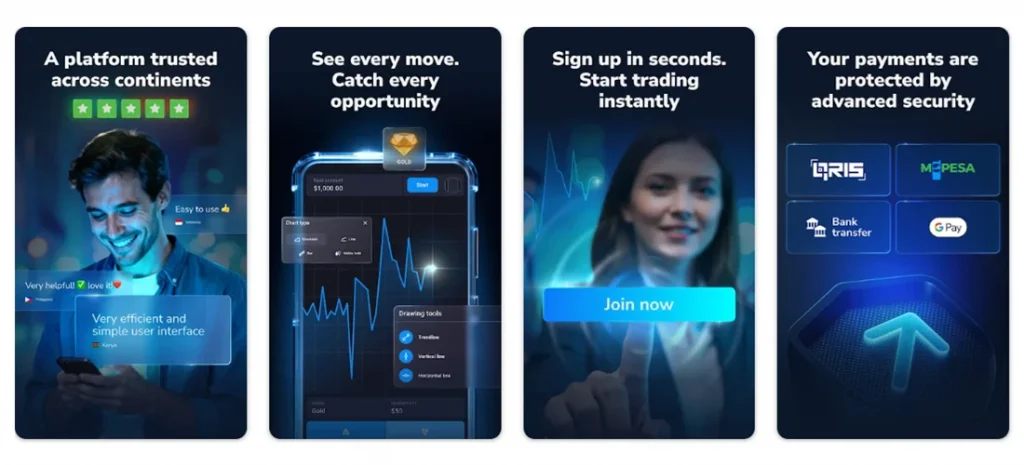
If you just want to start trading without installing anything, the web version is the fastest route. If you prefer a mobile app on your phone, the Android version covers most of the core functionality.
| Platform | Status | How to access it |
|---|---|---|
| Android | Available | Google Play or direct APK download from Website |
| APK file | Available as alternative | Manual installation |
| iPhone / iPad | Not consistently confirmed | Check App Store availability or use the web version |
| Windows | No native app | Web platform in browser, or install as PWA |
| Mac | No native app | Web platform in browser, or install as PWA |
| Web version | Fully available | Works directly in Chrome, Safari, Firefox, Edge |
Android app and APK: what you need to know
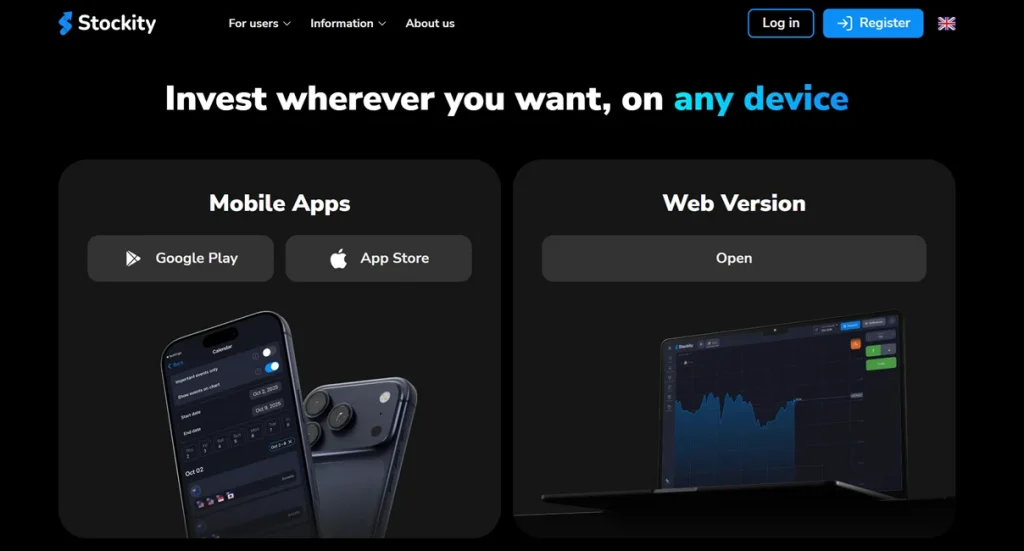
The Android app is Stockity’s main mobile product, offering live trading, demo mode, deposits, withdrawals, and most of the tools available on the web terminal. It’s built as a lightweight app rather than a full-scale trading suite, so some deeper chart analysis is easier on the web version.
Availability on Google Play isn’t always guaranteed. One official note explains that store algorithm changes can make the app temporarily unavailable, and in that case the APK is offered directly as a substitute download. This means the APK isn’t a workaround for a banned app. It’s a standard fallback method the broker itself points users to.
Installing via Google Play:
- Register on the official Stockity website and log in.
- Open the mobile app section in your account menu.
- Follow the link to Google Play.
- Install the app and sign in with your existing credentials.
Installing the APK manually:
- Download the APK file only from the official Stockity site (on your account dashboard), never from third-party app repositories.
- On your Android device, enable “Install from Unknown Sources” in Settings (this is required for any APK installed outside Google Play).
- Open the downloaded file and confirm installation.
- Launch the app and log in.
A modern Android device with a reasonably recent OS version should run the app without issues. Since exact size and version numbers change with updates, check the current details on the download page itself rather than relying on older figures.
Is there an iOS app for iPhone and iPad?
Information about a native iOS app is inconsistent across official sources. Some materials list only Android as the supported mobile platform, while others describe an App Store listing. Because this isn’t clearly confirmed, the safest approach is to check the App Store directly by searching “Stockity” and verifying the developer name before installing anything.
If no iOS app appears available in your region, or you’d rather skip App Store dependency altogether, the web platform works fully in Safari on iPhone and iPad and can be added to your home screen for quicker access, functioning much like an app shortcut.
Trading from a computer: web platform instead of a desktop app
Stockity does not offer a downloadable Windows or macOS application. No .exe or .dmg installer exists. Instead, the entire platform runs through a browser using HTML5, which is how the broker supports Windows, Mac, and Linux without separate software builds.
This makes the browser the primary way to trade on a computer:
- Open Chrome, Firefox, Safari, or Edge.
- Go to the official Stockity site and log in (or register if you’re new).
- The web terminal loads directly. No installation step is required.
For a more app-like experience, most modern browsers let you install the site as a Progressive Web App. On Windows, this typically means opening the browser menu and choosing an “Install” option, which creates a desktop shortcut and Start menu entry. On Mac, Safari offers a similar “Add to Dock” action. Either way, this creates a shortcut to the same web platform. It is not a separate native application, just a faster way to launch it.
Some traders also run the Android app through an emulator like BlueStacks to get a mobile-style interface on a larger screen. This is a workable alternative but not the primary or most reliable method. Expect it to depend heavily on your PC’s specifications and to require extra setup (Google account, emulator permissions, etc.).
Setting up and logging in after installation
Once you’ve picked a version (Android app, APK, or browser), the first-use steps are largely the same:
- Create an account or log in if you already registered.
- Verify your email (and phone number, if prompted).
- Choose between the demo balance and a live account.
- Confirm your preferred account currency and, if required, enable two-factor authentication for added security.
- Explore the demo balance before switching to real funds, especially if this is your first time on the platform.
No separate configuration is needed beyond a stable internet connection. The app and web version pull real-time data as soon as you log in.
What to do if the app won’t install or won’t open
Most installation and startup issues fall into a handful of common categories:
| Problem | Likely cause | What to try |
|---|---|---|
| APK won’t install | “Unknown Sources” disabled, or corrupted download | Re-enable the permission, re-download the file from the official source |
| App not showing in Google Play | Regional restriction or temporary store removal | Use the APK download or switch to the web version |
| App installs but won’t open | Outdated Android version, insufficient storage | Update your OS if possible, free up device storage, restart the phone |
| App freezes or crashes | Cached data conflict, unstable connection | Clear app cache, switch to Wi-Fi or stronger mobile signal, reinstall if needed |
| Web platform won’t load | Outdated browser, JavaScript disabled | Update your browser, enable JavaScript, try a different browser |
| PWA install option missing | Browser doesn’t support PWA prompts | Install manually via browser menu, or simply continue using the site in-browser |
If none of these fixes work, the web version remains the most dependable fallback. It doesn’t depend on device storage, OS version, or app store availability.
A quick note on download safety
Only download the APK from the official Stockity website or your verified account dashboard, not from third-party APK repositories, which can carry modified or unsafe files. Before installing, double-check that the app name and publisher match what’s listed officially. Review the permissions requested during installation, and keep both your device OS and the app itself updated once installed. These steps reduce risk but don’t guarantee complete safety. General caution with any financial app is warranted.
FAQ
Check the App Store directly for a current listing, and if it’s unavailable, use the web platform in Safari as a reliable alternative.
The APK is offered directly by Stockity as an alternative to Google Play, particularly when the app is temporarily removed from the store. Only download it from the official site, and enable “Unknown Sources” only for that installation.
No. The web platform runs in any modern browser without installation. You can optionally install it as a PWA for a desktop shortcut, but this isn’t required.
No native desktop application exists for either system. Both rely on the browser-based web platform, which works identically across Windows, Mac, and Linux.
Try clearing the app cache, confirming your Android version meets the app’s requirements, and checking your storage space. If problems persist, reinstalling the app or switching to the web version usually resolves access issues.
Yes, tools like BlueStacks can run the Android app on a computer, but this is a secondary option that depends on your hardware. The web platform is generally simpler for desktop trading.
For most users, the browser-based platform is the most consistent way to access Stockity, since it works the same way regardless of device or operating system and doesn’t depend on app store availability. The Android app is a solid option if you prefer a dedicated mobile interface, with the APK serving as a practical backup when Google Play access is limited. If you’re on iPhone, Mac, or Windows, sticking with the web version, optionally installed as a PWA shortcut, is the simplest and most reliable path into the platform.