
Guide and Acces 2026
Pocket Option App Download and Installation Guide
Click below to open the official Pocket Option website, where you can download the app for your device.
Pocket Option has a mobile app for Android and iOS, and it can also be used on Windows and Mac without installing a separate desktop program. There is no confirmed native Windows or macOS application. Instead, PC and Mac users typically rely on the web platform, a browser-based install (PWA), or, if preferred, an Android emulator.
If you’re trying to figure out which version fits your device, this guide walks through every option: the Android app, the APK file, the iOS app, the web version, and what to do if the app won’t install or open.
| Platform | Availability | Access Method |
|---|---|---|
| Android | Available | Google Play Store or APK |
| APK | Available | Direct APK file download |
| iPhone and iPad | Available | App Store (browser access also possible) |
| Windows | Web access available | Browser, PWA install, or emulator |
| Mac | Not available as a native app | Browser or PWA install |
| Web version | Available | Any supported browser |
What Is the Pocket Option App?
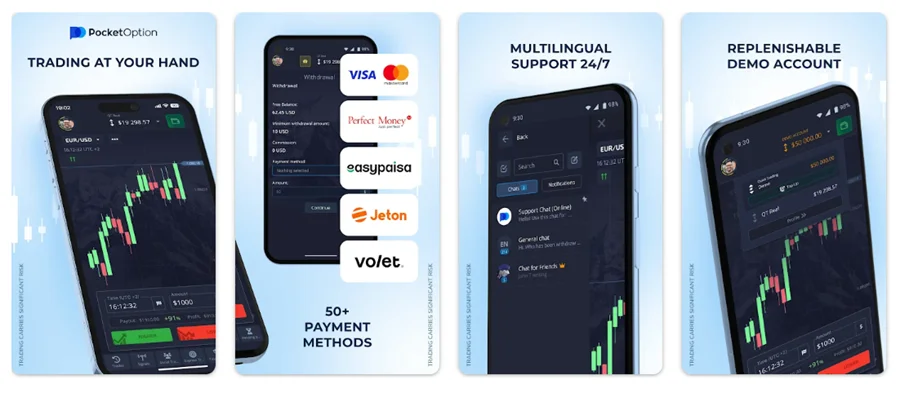
The Pocket Option app is the mobile version of the trading platform, built for placing trades, checking charts, and managing an account from a phone. It mirrors the core layout of the web platform, including asset lists, charting tools, and order execution, in a smaller, touch-friendly interface. There’s no separate “lite” or “pro” app; the same application is used for both demo and live accounts.
Pocket Option App Download Options
Depending on your device, you have a few realistic ways to get the app or platform running:
- Android phone or tablet. Google Play Store, or an APK file if the Play Store isn’t accessible.
- iPhone or iPad. The App Store, or the web version added to your home screen.
- Windows PC. The web platform in a browser, or a PWA install for a desktop-style shortcut.
- Mac. The web platform, with the same PWA option available through Safari.
There isn’t one single “download page” that fits every device, so pick the method that matches what you’re using rather than searching for a universal installer.
Pocket Option for Android
An Android version of the app is available and can be installed either from the Google Play Store or as a standalone APK file. The Play Store listing shows the app is offered by Pocket Investments LLC and requires Android 5.0 and up, so most phones from the last several years should be compatible.
To install it from the Play Store:
- Open the Google Play Store on your device.
- Search for “Pocket Option.”
- Tap Install and wait for the download to finish.
- Open the app and log in or create an account.
If the app isn’t showing up in your region’s Play Store, the APK route below is the usual alternative.
Pocket Option APK Download
An APK version of the app does exist and is offered as a direct download in some sources, separate from the standard Google Play listing. This is useful if the Play Store is restricted in your country or if you want to install the app manually.
Keep in mind that an APK installed outside the Play Store isn’t automatically checked by Google Play Protect the same way a Play Store install is. Only download the APK from the official Pocket Option website or your account dashboard, not from random third-party file-sharing sites, since modified or fake APKs can carry malware.
How to Install Pocket Option on Android
If you’re installing via APK rather than the Play Store:
- Download the APK file from the official Pocket Option site.
- Open your phone’s Settings and allow installation from unknown sources for your browser or file manager (this is usually a one-time permission).
- Locate the downloaded file and tap it to start installation.
- Follow the on-screen prompts to finish installing.
- Open the app and log in or sign up.
If you’d rather avoid this extra permission step, the Play Store install is simpler and updates automatically.
Pocket Option for iPhone and iPad
An iOS app is available through the Apple App Store. To get it:
- Open the App Store on your iPhone or iPad.
- Search for “Pocket Option.”
- Tap Install and accept the app’s terms.
- Open the app and log in with your email and password, or sign up if you’re new.
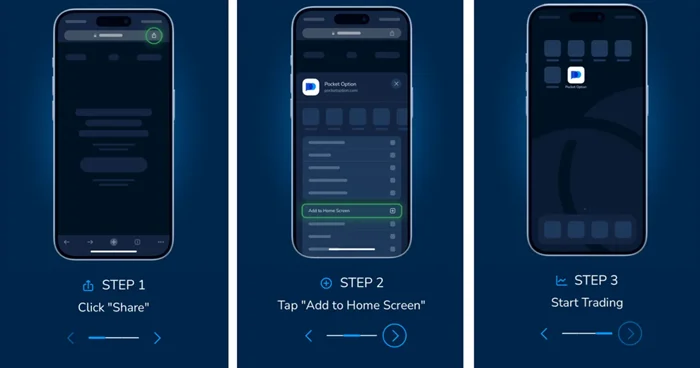
Some sources also describe adding the web platform to your home screen through Safari’s share menu as an alternative to the App Store app. This works if you’d rather not install a separate app, but the App Store version is the more direct route for most users.
Pocket Option for PC and Windows
There is no widely confirmed, officially distributed native Windows application at this time. What is consistently available is the web platform, which runs in any modern browser, plus an optional PWA install that adds a desktop-style shortcut without a traditional download.
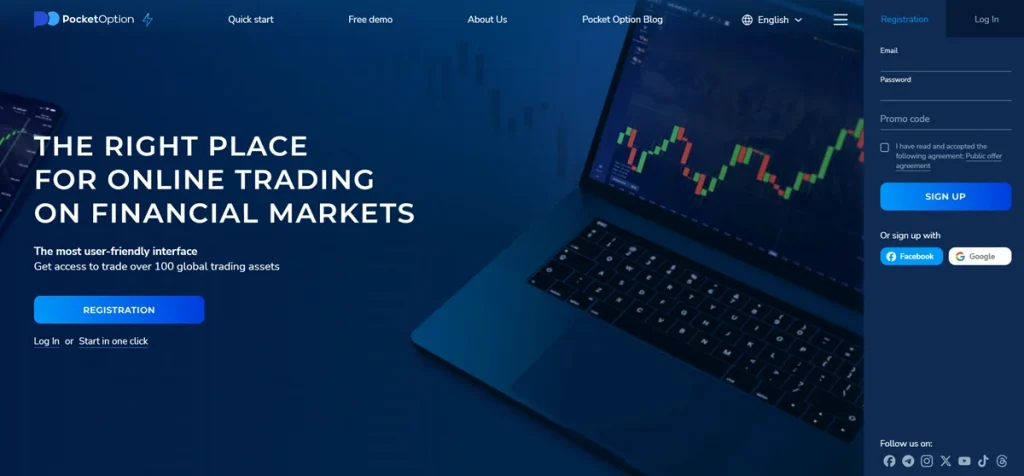
To use the web platform on Windows:
- Go to the official Pocket Option website.
- Log in or create an account.
- Trade directly in the browser, no installation required.
To install it as a PWA for quicker access:
- Open the platform in Chrome or Edge.
- Look for the Install icon near the address bar.
- Click it and confirm the installation.
- A desktop shortcut will appear for future logins.
Some Windows users may also come across a downloadable installer file on the official site. If you’re offered one, only accept it directly from Pocket Option’s own domain rather than a third-party mirror. If you specifically want the mobile interface on a bigger screen, an Android emulator such as BlueStacks or MEmu can run the Android app on Windows, though this adds extra setup and isn’t the simplest option for most people.
Pocket Option for Mac
There’s no dedicated macOS application. Mac users get the same web platform as Windows users, accessed through Safari, Chrome, or Firefox.
To add a shortcut on Mac:
- Open the Pocket Option website in Safari.
- Log in to your account.
- Use the Share menu and select Add to Dock to create a PWA-style shortcut.
This gives you an icon that opens the platform directly, without a full installer.
Pocket Option Web Version
The web version requires no installation at all. You open it in a browser, log in, and start trading. It supports current versions of Chrome, Edge, Firefox, and Safari, and it’s the most consistent way to access the platform on any computer, including ones where you can’t install software (work laptops, shared computers, Chromebooks). For Windows and Mac users without a native app, the web version effectively is the desktop experience.
How to Use the Pocket Option App
- Choose the version that matches your device: Android app, iOS app, or web platform.
- Download or open it using the steps above.
- Install it if required (Android/iOS), or simply load the page (web/PWA).
- Launch the app or browser tab.
- Log in with your existing account, or sign up if you’re new.
- Check that your account type (demo or real) is set correctly before placing trades.
Pocket Option App Not Installing or Not Opening
| Issue | Possible Reason | What to Try |
|---|---|---|
| App won’t download | Weak or unstable internet connection | Switch networks or retry on Wi-Fi |
| Installation fails | Not enough storage space | Free up space and try again |
| APK won’t install | Unknown sources permission disabled | Enable installs from unknown sources in Settings |
| App won’t open | Outdated Android or iOS version | Check minimum OS requirements and update if possible |
| App crashes on launch | Corrupted or incomplete download | Delete and reinstall the app |
| App feels stuck or slow | Outdated app version | Update through the Play Store or App Store |
| Login screen won’t load | Cached data conflict | Clear the app’s cache or reinstall |
| Nothing works after multiple tries | Temporary server issue | Use the web version as a backup while you wait |
If none of these fix the problem, the web version is a reliable fallback since it doesn’t depend on device storage or app updates.
Is the Pocket Option App Safe to Download?
Downloading from the official Pocket Option website or a recognized app store (Google Play, App Store) is the safest approach. Before installing, check that the app name and developer match what’s listed officially, avoid modified or “cracked” APKs from unfamiliar sites, and review the permissions it requests. Keeping both your device’s OS and the app itself updated also reduces the chance of running into bugs or compatibility issues.
FAQ
Yes. Pocket Option has apps for Android and iOS, along with a web platform that works on any device with a browser. There’s no confirmed standalone Windows or Mac app.
Install it from the Google Play Store by searching “Pocket Option,” or download the APK directly from the official website if the Play Store isn’t available in your region.
Yes, an APK is offered for manual installation. Only download it from the official Pocket Option site, since third-party APK files can be modified or unsafe.
Yes, through the App Store. You can also access the platform via Safari and add it to your home screen if you prefer not to install a separate app.
There’s no confirmed native Windows app. Use the web platform in your browser, or install it as a PWA for a desktop-style shortcut.
No dedicated macOS app exists. Mac users access the platform through Safari or another browser, with an optional “Add to Dock” shortcut.
Yes. The web version works fully in a browser on both phones and computers, with no installation needed.
This is usually linked to an outdated OS, a corrupted download, or a temporary server issue. Reinstalling the app or switching to the web version usually resolves it.
Final Thoughts
Pocket Option is accessible through native apps on Android and iOS, an APK for manual Android installs, and a web platform that works across Windows, Mac, and mobile browsers without any installation. Mobile users have the most direct path through the Play Store or App Store, while Windows and Mac users are better served by the web version or a PWA install rather than searching for a dedicated desktop program. Whichever device you’re on, the web version remains the simplest fallback if an app won’t install or open.