
Guide and Acces 2026
Quotex App Download and Installation Guide
Click below to open the official Qxbroker website, where you can download the app for your device.
Quotex offers an official app for Android through Google Play, but there is currently no official Quotex app on the Apple App Store for iOS. There is also no dedicated desktop program for Windows or Mac. If you’re on a computer, or if you can’t find the app on your iPhone, the web version and a Progressive Web App (PWA) installation cover most of what the native app would offer.
This guide walks through what’s actually available for each platform, how to install it, and what to do if the app won’t install or open.
| Platform | Availability | Access Method |
|---|---|---|
| Android | Available | Google Play or APK from official site |
| APK | Available | Direct download from official website |
| iPhone and iPad | Not available | Web version or PWA |
| Windows | Not available | Web version or PWA |
| Mac | Not available | Web version or PWA |
| Web version | Web access available | Any modern browser |
What Is the Quotex App?
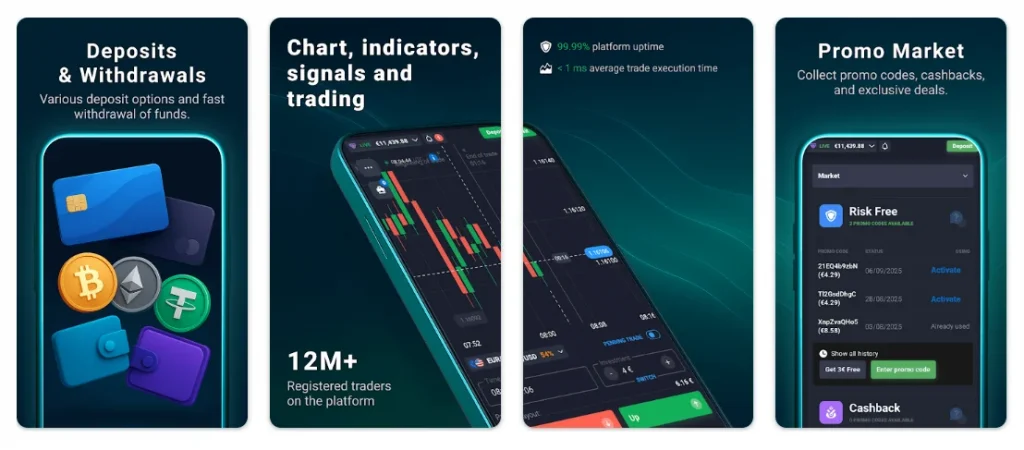
The Qxbroker app is the mobile version of the trading platform, built for placing trades, checking charts, and managing an account from a phone. On Android it works as a standalone installable app. On other platforms, “the app” usually means either the web version opened in a browser or a home-screen shortcut created through the PWA feature – not a separate downloadable program.
Quotex App Download Options
Depending on your device, you have a few realistic options:
- Android phone or tablet – install the official app from Google Play, or download the APK from the official website.
- iPhone or iPad – use the mobile browser or add Quotex to your home screen as a PWA.
- Windows or Mac computer – use the web version in your browser, or install it as a desktop PWA for an app-like window.
- PC with mobile-only preference – run an Android emulator, though this is a workaround rather than the standard route.
Quotex for Android
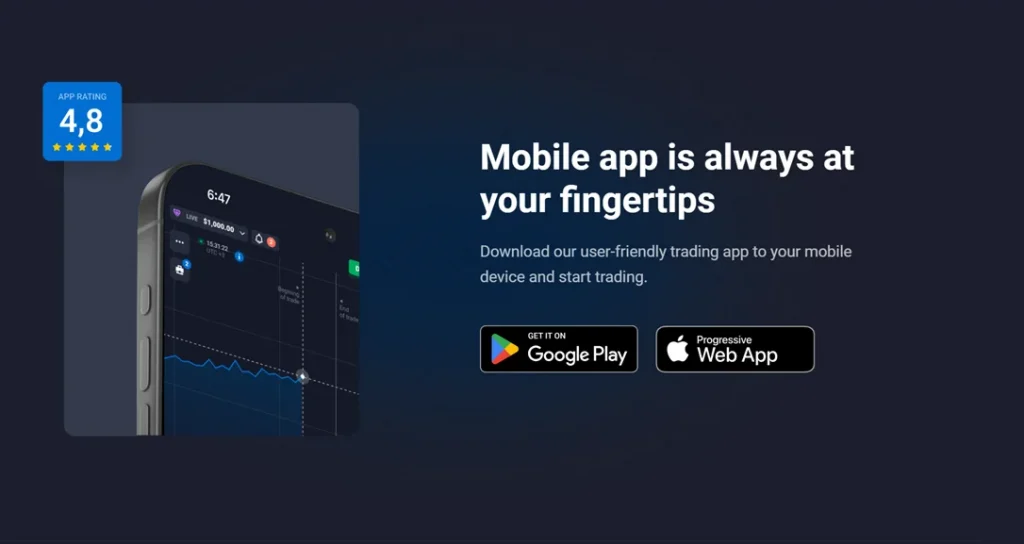
The Android app is the one platform where Quotex maintains an official, downloadable application. It’s listed on Google Play under the developer’s name, and installing it works the same way as any other Play Store app: search for it, tap install, and open it once it’s downloaded.
If the app isn’t showing up in Play Store search for your region, the official website also offers a direct APK download as a fallback, along with the standard web version.
Quotex APK Download
An APK version of the Android app is offered directly from the official website as an alternative to Google Play. This is useful if Play Store access is restricted in your country or if you’d rather install the file manually.
Keep in mind that APK files installed outside the Play Store bypass Google’s built-in review process, so the file itself isn’t automatically verified the way a Play Store listing is. Only download the APK from the official Quotex website – third-party download sites and file-sharing platforms sometimes host modified or fake versions.
How to Install Quotex on Android
Via Google Play:
- Open Google Play Store and search for “Quotex”.
- Tap Install on the official listing.
- Once installed, open the app and log in or register.
Via APK:
- Download the APK file from the official Quotex website.
- Go to your device settings and allow installation from unknown sources (this setting is usually under Security or Apps).
- Open the downloaded file and follow the on-screen prompts.
- Launch the app and sign in with your account.
Quotex for iPhone and iPad
There is currently no official Qxbroker app in the App Store for iOS. If you see one listed under the Quotex name, treat it with caution – it isn’t the official platform and could put your account or funds at risk.
The practical alternative is to use Quotex directly in Safari, or install it as a PWA so it behaves like a regular app:
- Open Safari and go to the official Quotex website.
- Tap the Share icon (square with an upward arrow).
- Scroll down and tap “Add to Home Screen.”
- Tap Add to confirm.
The Quotex icon will then appear on your home screen, and tapping it opens the platform in full-screen mode without a browser address bar.
Quotex for PC and Windows
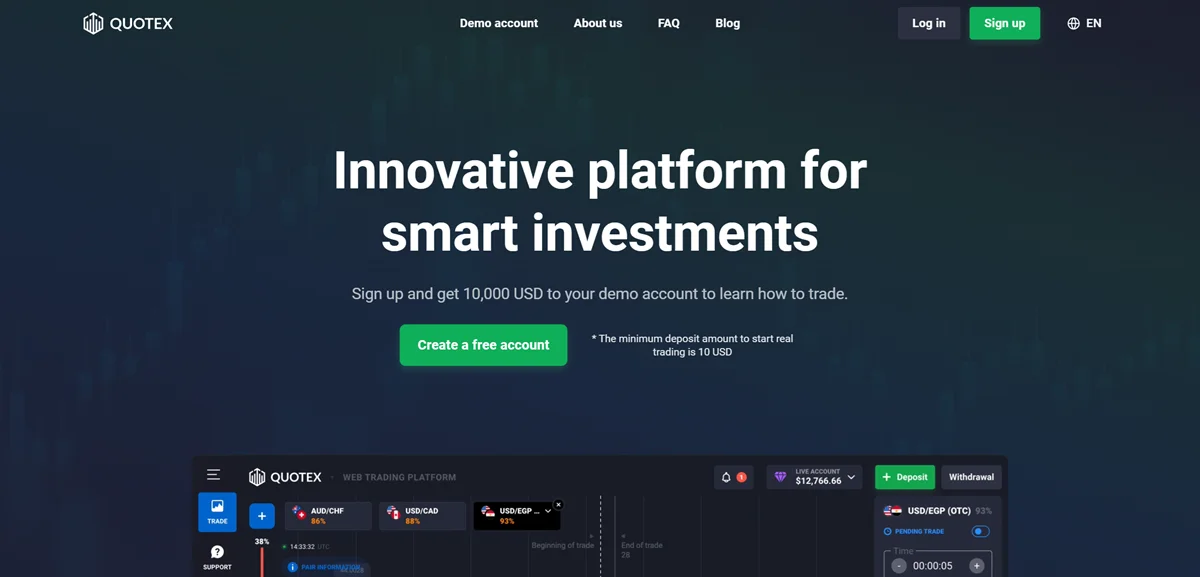
Quotex doesn’t offer a standalone Windows application. The main way to trade on a Windows PC is through the web version in any modern browser – this gives you the full trading interface without installing anything.
If you want something closer to a desktop app, most Chromium-based browsers (Chrome, Edge) let you install the Quotex website as a PWA:
- Open the Quotex website in Chrome or Edge.
- Look for the install icon in the address bar, or open the browser menu and choose “Install this site as an app” / “Apps.”
- Confirm the installation.
This creates a desktop shortcut that opens Qxbroker in its own window, separate from your regular browser tabs. Some traders who specifically want the mobile app interface on a bigger screen use an Android emulator like BlueStacks instead, but this is an extra layer of software rather than an official Quotex product, and it uses noticeably more system resources than the browser or PWA route.
Quotex for Mac
There’s no dedicated macOS application either. Mac users trade through the same web version, opened in Safari, Chrome, or Firefox. The PWA installation option is also available on Mac browsers that support it, giving you a separate app-like window instead of a browser tab.
For most Mac users, the web version alone is enough – it loads the same trading interface without any setup.
Quotex Web Version
The web version is the full trading platform accessed through a browser, with no installation required. Just go to the official Quotex website, log in, and start trading. It works on desktop and mobile browsers alike, and it’s the fallback option whenever a native app isn’t available for your device – which currently applies to iOS, Windows, and Mac.
Because the web version and the app share the same account and data, switching between them doesn’t require any extra setup.
How to Use the Quotex App
- Pick the version that matches your device – Android app, APK, or the web version/PWA for everything else.
- Download or open it using the methods above.
- Install it if it’s a downloadable file (Android app or APK).
- Launch the app or open the website.
- Log in with your existing account, or register if you’re new.
- Check basic settings like language and notification preferences before you start trading.
Quotex App Not Installing or Not Opening
| Issue | Possible Reason | What to Try |
|---|---|---|
| APK won’t install | Unknown sources disabled | Enable installation from unknown sources in device settings |
| Install button greyed out | Not enough storage | Free up space and retry |
| App crashes on open | Outdated OS version | Update Android/iOS to a supported version |
| Stuck on loading screen | Unstable internet connection | Switch to Wi-Fi or a stronger signal |
| App won’t open after update | Corrupted or incomplete install | Uninstall and reinstall the app |
| Missing features or errors | Old app version | Check for updates via Play Store or reinstall the APK |
| Nothing works after several tries | Device or app-specific limitation | Use the web version as a temporary alternative |
If none of these fix the problem, opening the platform in a mobile or desktop browser will usually work while you sort out the app itself.
Is the Quotex App Safe to Download?
Download the Android app only from Google Play or the official Qxbroker platform website, and avoid APK files from third-party sharing sites. Before installing, double-check the developer name and app permissions match what’s expected for a trading app – it shouldn’t be asking for unrelated access like contacts or messages. Keeping the app and your device operating system updated also reduces security risks over time. No download method can be called completely risk-free, so sticking to official sources is the most practical safeguard.
FAQ
Yes, for Android. It’s available on Google Play and as a direct APK from the official website. There’s currently no official version for iOS, Windows, or Mac.
Search for “Quotex” on Google Play and install it, or download the APK from the official website if Play Store access isn’t available in your region.
Yes, the official website offers a direct APK download as an alternative to Google Play, mainly for regions where the Play Store listing isn’t accessible.
There’s no App Store app right now. You can use Quotex through Safari or install it as a PWA on your home screen for an app-like experience.
No standalone Windows program exists. Use the web version in your browser, or install it as a PWA for a desktop-style window.
No dedicated macOS app is available. Mac users access Quotex through the browser-based web version instead.
Yes. The web version runs the full platform in your browser on any device, without any installation.
This usually comes down to an outdated OS, a corrupted install, or a poor connection. Try updating your device, reinstalling the app, or switching to the web version.
Quotex is available as a native app only on Android, either through Google Play or a direct APK download. iPhone, iPad, Windows, and Mac users don’t have a dedicated app to install, but the web version covers the same functionality in any browser, and a PWA installation adds a home-screen or desktop shortcut for a more app-like feel.
Mobile users on Android get the most complete standalone option, while anyone on iOS, Windows, or Mac can rely on the web version without losing access to core trading features.